


How to add RTC on the STM32N6
- 0 replies
- 1469 views
Summary
This article provides a quick guide on how to enable and add real-time clock (RTC) on STM32N6 MCUs and configure it accordingly. This tutorial uses the STM32N6570-DK for the demonstration.
Introduction
The real-time clock (RTC) is an independent timer/counter that provides accurate timekeeping functionality for a wide range of applications. It ensures precise tracking of time and date, even during power interruptions, by leveraging a backup power source. The RTC includes a time-of-day clock/calendar with a programmable alarm interrupt and can automatically wake up the system to manage all low-power modes.
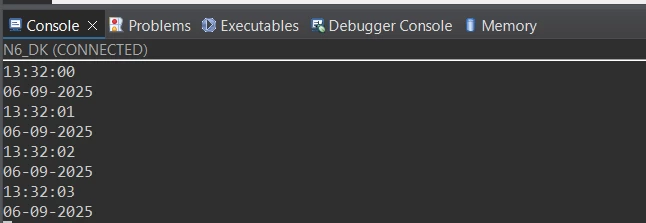
The demo displays the time and date every second via the UART/VCOM port available on the Discovery kit.
1. Software setup
This article assumes you have installed STM32CubeMX (version 6.13 or later), the latest version of the STM32N6 HAL driver, and STM32CubeIDE (version 1.18.0 or later). The hardware used to showcase is the STM32N6570-DK. Make sure you the board in DEV boot mode to program the code.
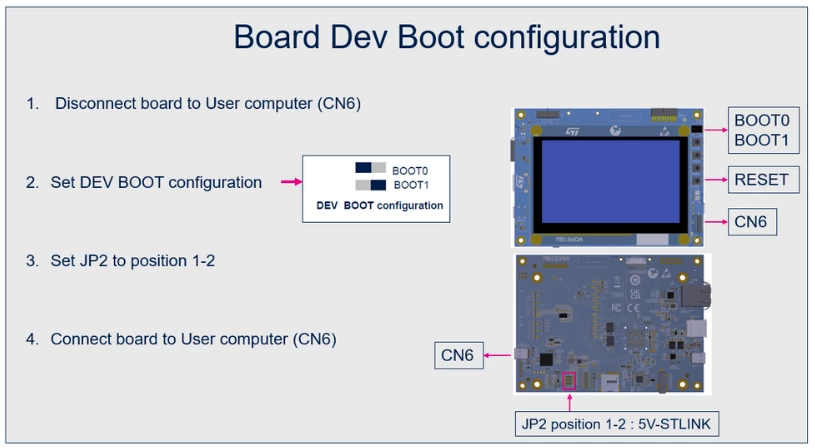
2. STM32CubeMX configuration
To properly activate RTC, this project requires some configuration using STM32CubeMX.
Create a new project using the STM32CubeMX and select the [STM32N657X0H3Q]. Select the option to use the [Secure Domain only].
2.1 RCC and RTC configuration
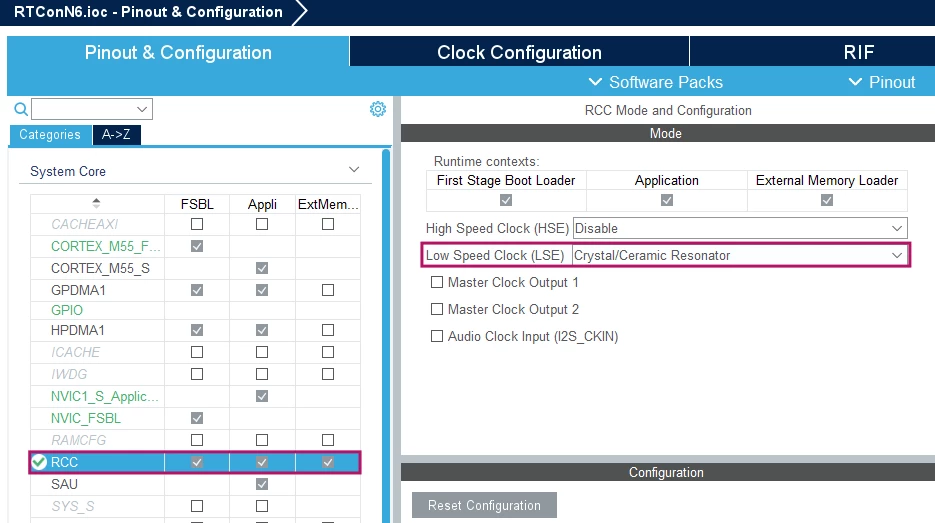
On STM32CubeMX, assign the RCC to the Low Speed Clock (LSE). You can do this in the [System Core] section.
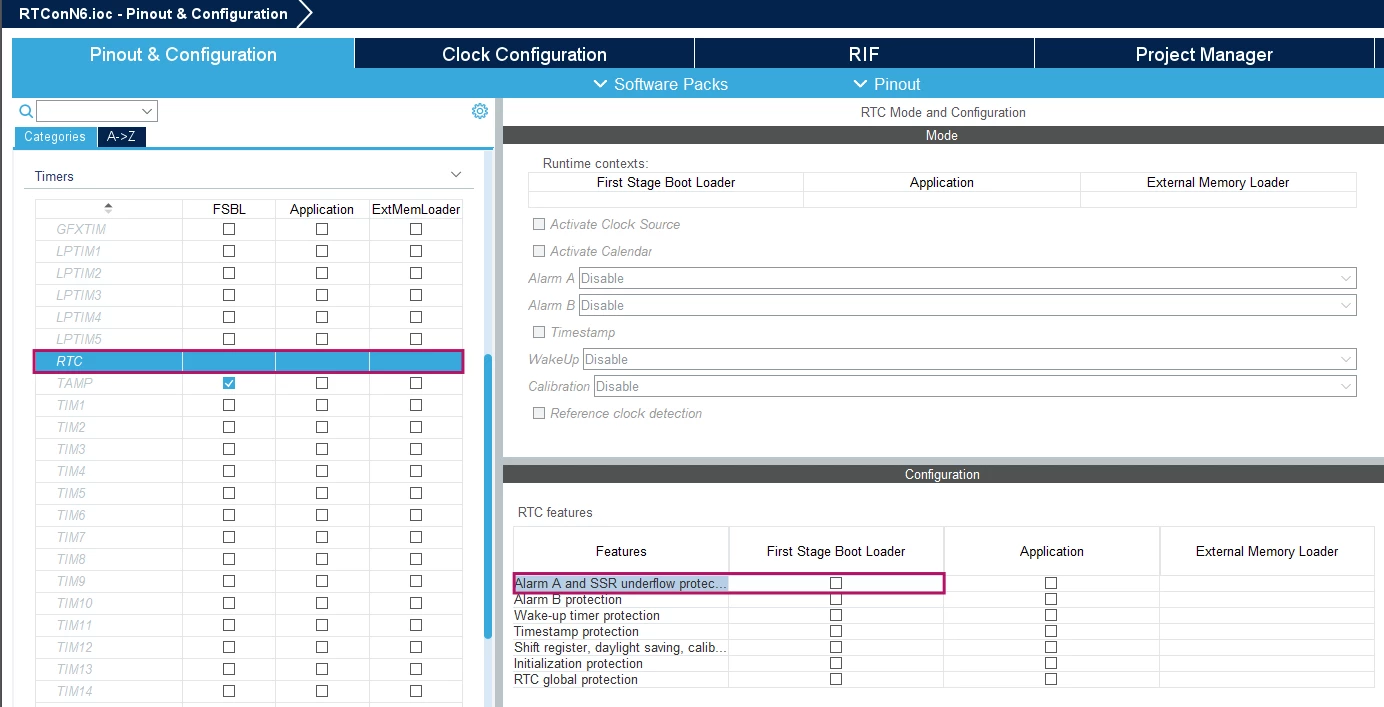
Under the [Timers] section, click on [RTC] and then click on the [Alarm A and SSR Underflow protection].
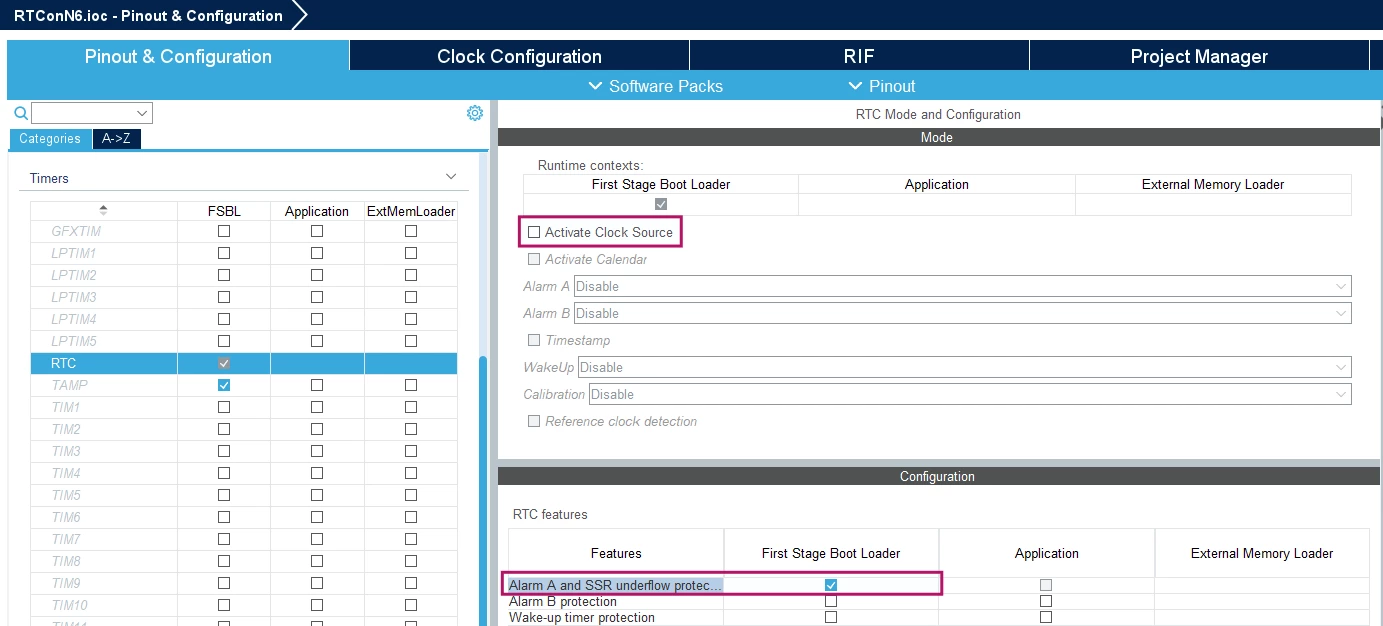
Here, you can independently assign the RTC features for your first stage bootloader (FSBL) or application. We choose the FSBL for this example.
Then, check the [Activate Clock Source] box.
Along with that, on the “Clock Configuration” tab, you can change RTC Clock Mux from LSI to LSE.
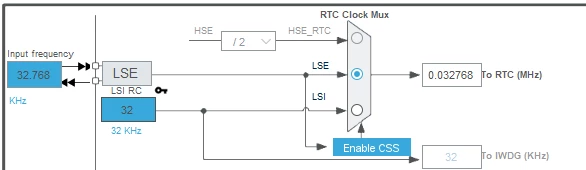
To calibrate the RTC on your MCU, the knowledge article How to calibrate the STM32's real-time clock (RTC), provides a guide that can be tailored to any other STM32.
2.2 Configuring the UART
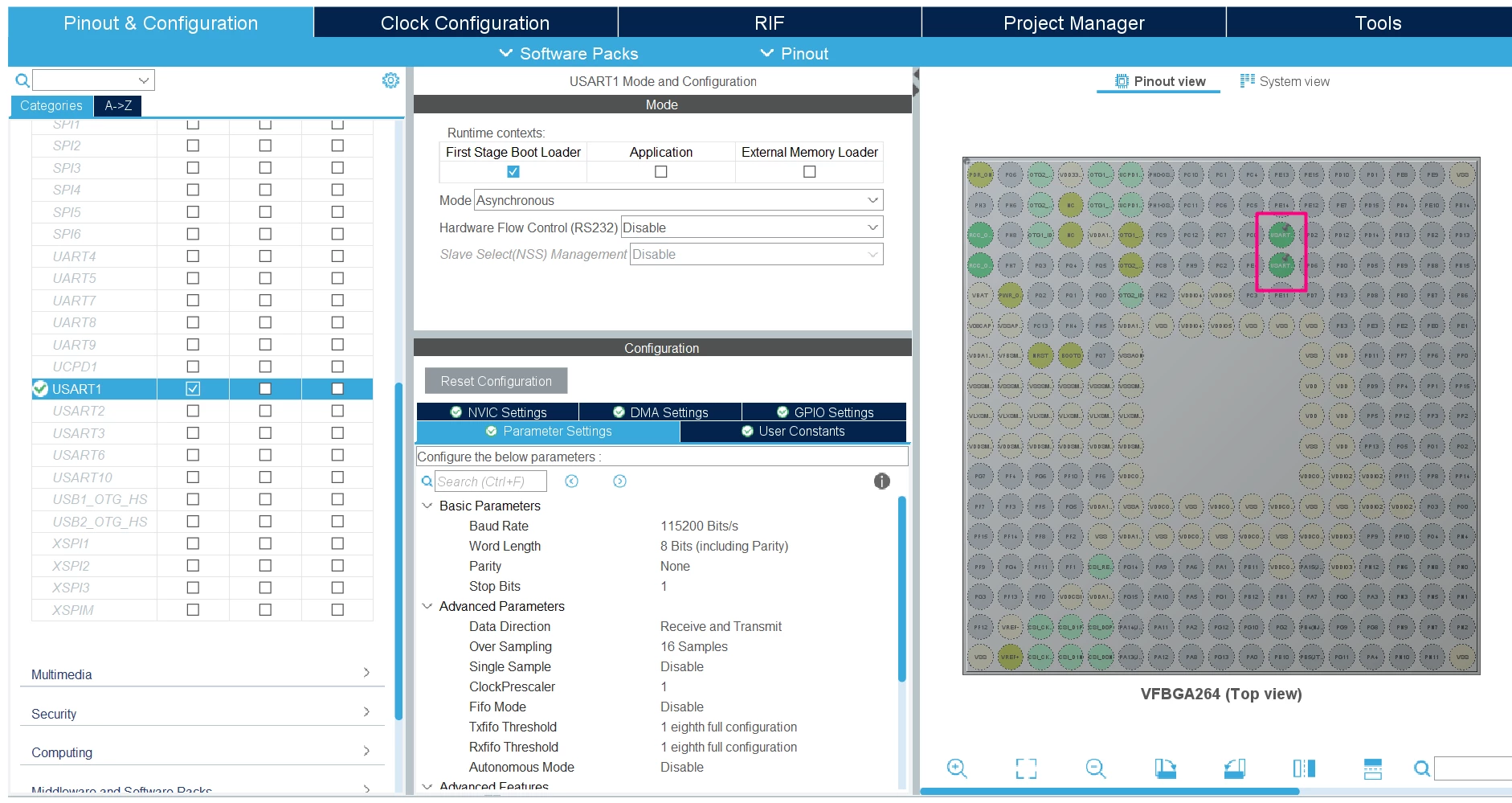
Locate the [USART1] under Connectivity and enable it for the FSBL, using the settings: 115200 / 8 / N / 1 and assign the pins PE5 and PE6 for Tx and Rx, respectively, as shown below:
2.3 Project generation
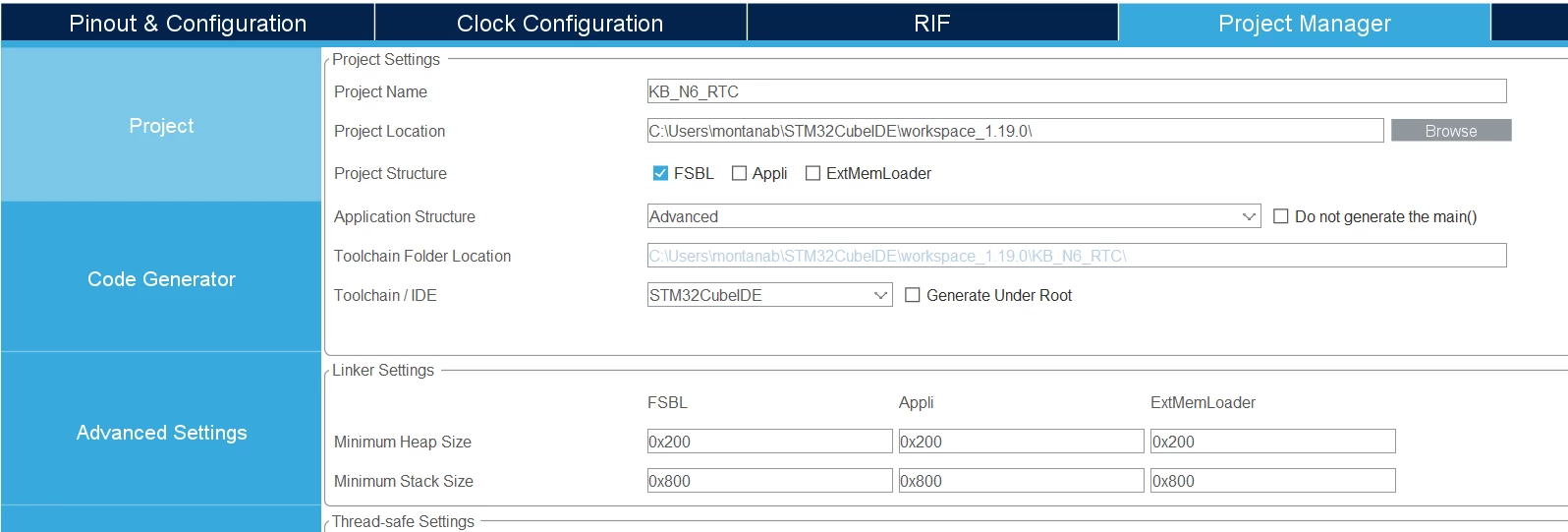
Under [Project Manager] you can select your desired Toolchain/IDE, choose [FSBL] as the project structure and click [Generate Code]. This example relies on STM32CubeIDE with only the FSBL and not generating the code under root.
3. Code editing
To validate our progress, we need to add a few lines of code on the generated code. For this portion of the guide, we use STM32CubeIDE as our IDE.
Insert the following code snippets in your main.c file:
/* USER CODE BEGIN Includes */
#include "stdio.h"
#include "stm32n6xx_hal.h"
#include "stm32n6xx_hal_rtc.h"
/* USER CODE END Includes */
/* USER CODE BEGIN PV */
uint8_t aShowTime[16] = "hh:mm:ss";
uint8_t aShowTimeStamp[16] = "hh:mm:ss";
uint8_t aShowDate[16] = "mm-dd-yyyy";
uint8_t aShowDateStamp[16] = "mm-dd-yyyy";
__IO uint8_t RTCStatus = 0;
/* USER CODE END PV *//* USER CODE BEGIN PFP */
static void RTC_CalendarShow(void);
/* USER CODE END PFP *//* USER CODE BEGIN 0 */
int __io_putchar(int ch)
{
HAL_UART_Transmit(&huart1, (uint8_t *)&ch, 1, 0xFFFF);
return ch;
}
/* USER CODE END 0 */In the main function:
/* USER CODE BEGIN WHILE */
 while (1)
 {
 /* USER CODE END WHILE */

 /* USER CODE BEGIN 3 */
 RTC_CalendarShow();
 HAL_Delay(1000);
 }
In the MX_RTC_Init(), add the desired settings for the time and calendar:
 /* USER CODE BEGIN RTC_Init 1 */
 RTC_TimeTypeDef sTime = {0};
 RTC_DateTypeDef sDate = {0};
 /* USER CODE END RTC_Init 1 */
/* USER CODE BEGIN RTC_Init 2 */
/** Initialize RTC and set the Time and Date
*/
sTime.Hours = 0x13;
sTime.Minutes = 0x32;
sTime.Seconds = 0x0;
sTime.DayLightSaving = RTC_DAYLIGHTSAVING_NONE;
sTime.StoreOperation = RTC_STOREOPERATION_RESET;
if (HAL_RTC_SetTime(&hrtc, &sTime, RTC_FORMAT_BCD) != HAL_OK)
{
Error_Handler();
}
sDate.WeekDay = RTC_WEEKDAY_MONDAY;
sDate.Month = RTC_MONTH_JUNE;
sDate.Date = 0x09;
sDate.Year = 0x25;
if (HAL_RTC_SetDate(&hrtc, &sDate, RTC_FORMAT_BCD) != HAL_OK)
{
Error_Handler();
}
/* USER CODE END RTC_Init 2 */Finally, at the end of the file, add the RTC_CalendarShow()
/* USER CODE BEGIN 4 */
/**
 * @brief Display the current time and date.
 * showtime : pointer to buffer
 * showdate : pointer to buffer
 * @retval None
 */
 static void RTC_CalendarShow(void)
 {
 RTC_DateTypeDef sdatestructureget;
 RTC_TimeTypeDef stimestructureget;
 /* Get the RTC current Time */
 HAL_RTC_GetTime(&hrtc, &stimestructureget, RTC_FORMAT_BIN);
 /* Get the RTC current Date */
 HAL_RTC_GetDate(&hrtc, &sdatestructureget, RTC_FORMAT_BIN);

 /* Display time Format : hh:mm:ss */
 sprintf((char *)aShowTime, "%.2d:%.2d:%.2d", stimestructureget.Hours, stimestructureget.Minutes, stimestructureget.Seconds);
 printf("%s \r\n",aShowTime);

 /* Display date Format : mm-dd-yy */
 sprintf((char *)aShowDate, "%.2d-%.2d-%.2d", sdatestructureget.Month, sdatestructureget.Date, 2000 + sdatestructureget.Year);
 printf("%s \r\n",aShowDate);
 }
/* USER CODE END 4 */
4. Validation
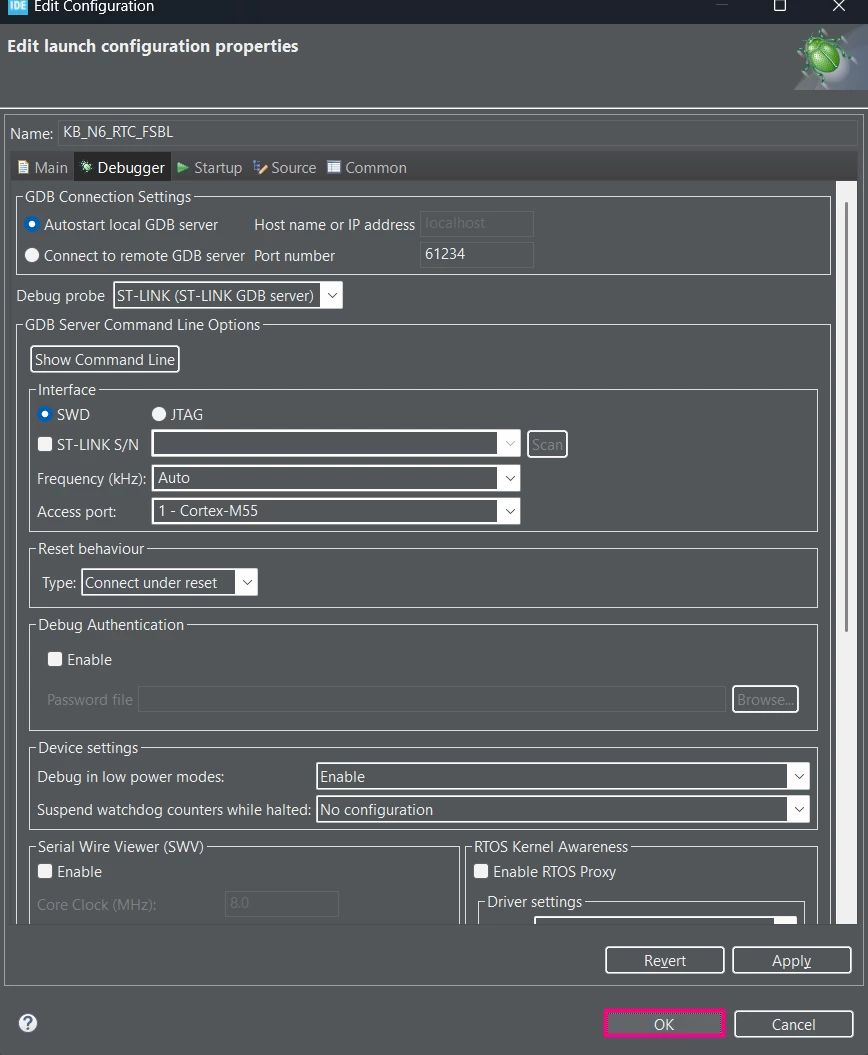
Build the project, configure the debugger interface, and load the code.
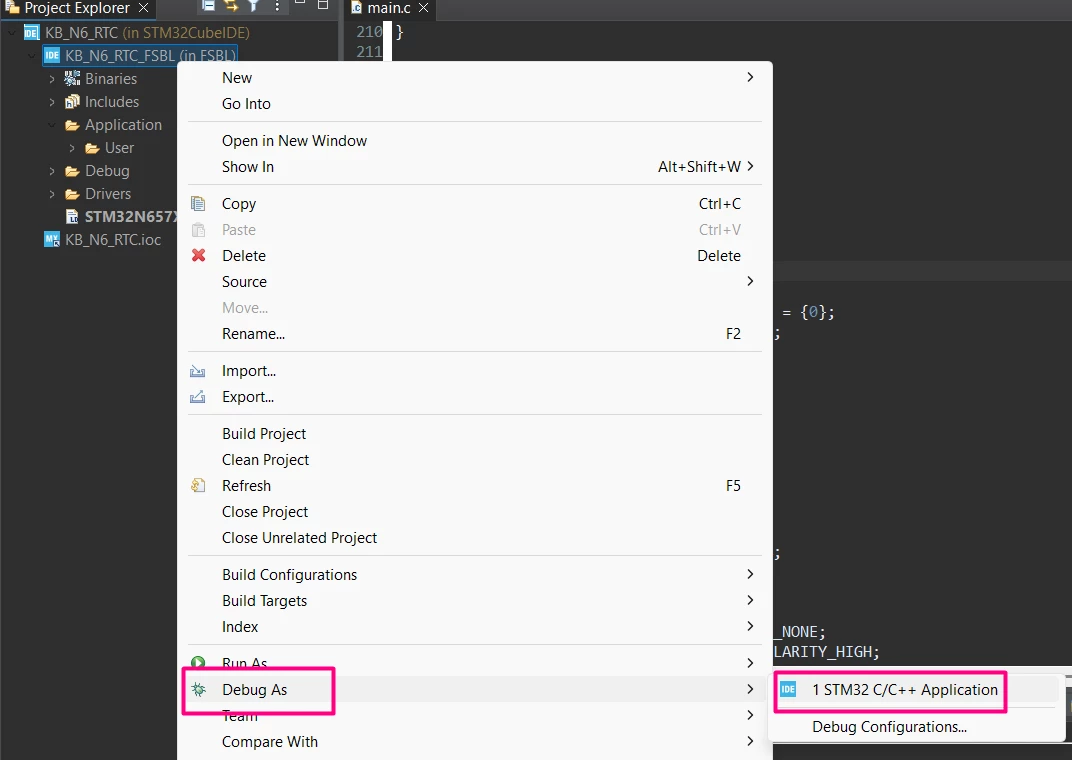
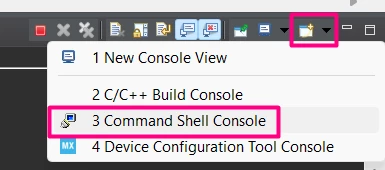
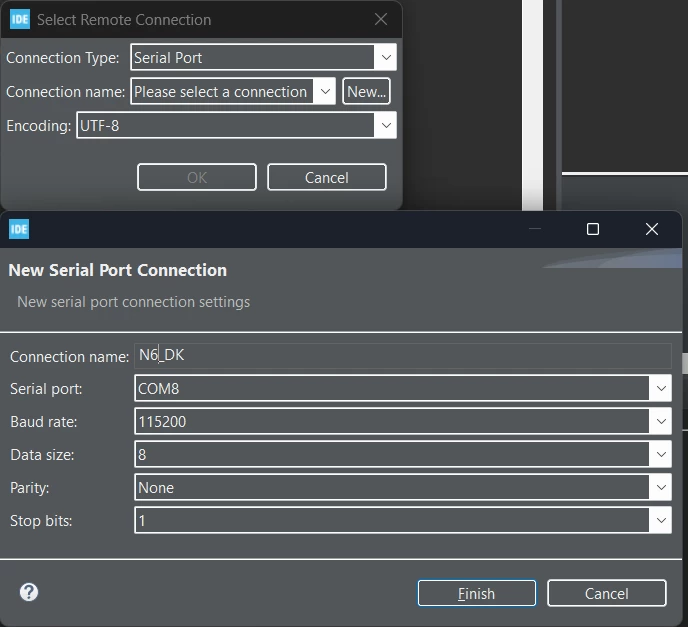
Before starting the application, configure the terminal for tracking the time and calendar.
This code sends messages via UART every second:
Conclusion
The real-time clock is an important microcontroller peripheral for providing precise time measurement used for applications that range from calendars to wake-up signals for low-power modes. In this article, we explored how to add and configure STM32N6 microcontrollers’ RTC, as well as how to validate this implementation using simple methods and configurations.
Related links
- Product page: STM32N6570-DK
- Reference manual 0486: STM32N647/657xx Arm®-based 32-bit MCUs
- Knowledge article: How to calibrate the STM32's real-time clock (RTC)
- ST wiki: Getting Started with RTC
- Data brief 5351: STM32N6570-DK - Discovery kit with STM32N657X0 MCU
- User manual 3249: Getting started with STM32CubeN6 for STM32N6 series.