
How to configure and use the DTS (digital temperature sensor) on the STM32H7
Introduction
The DTS (digital temperature sensor) was introduced in the high-performance STM32H7 series (STM32H72x/H73x). This temperature sensor is intended to measure in °C the die temperature called junction temperature (Tj) and not the ambient temperature (Ta). This article describes how to configure and use this peripheral on a STM32H723.
1. Prerequisites
- Hardware
- A micro USB cable used to power the Nucleo board from a host machine and to load the code into the STM32
- Nucleo-H723
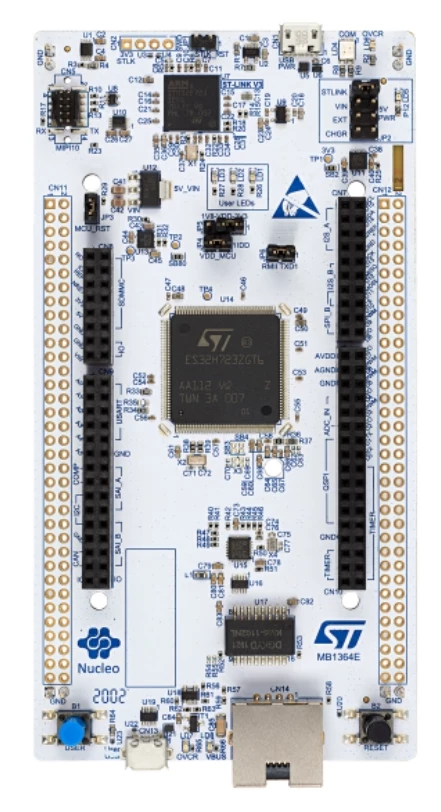 Figure 1. Nucleo-H723 board
- Software: STM32CubeMX and STM32CubeIDE
2. Theory
The DTS generates a square wave with a frequency that is proportional to the temperature. The frequency is measured either with the PCLK or the LSE clock. This article shows how to configure and use this peripheral using the STM32CubeMX with a Nucleo-H723. Figure 2 shows the temperature sensor sequence measurement.
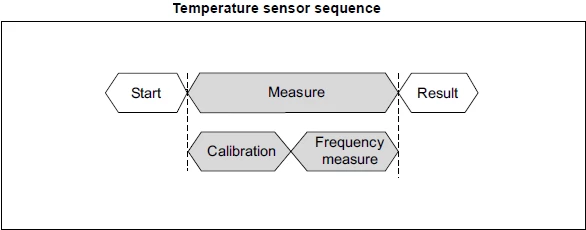 Figure 2. DTS sensor temperature measurement sequence
The frequency measurement starts by software. The reference clock used in this article is the high-speed clock which is PCLK. The quick measurement is disabled so the calibration starts automatically before the temperature measurement. According to the DTS specification, the counter clock must be slower than 1 MHz during the calibration phase and it is disabled automatically during the temperature measurement. As the DTS clock input exceeds that frequency, the divider must be used. For sampling time, 15 samples setting is used. A High and Low Threshold can be set to define a temperature window, that if exceeded, will generate an interrupt (that is, if the temperature is higher or lower than the thresholds).
Here is the block diagram of the DTS shown by figure 3: 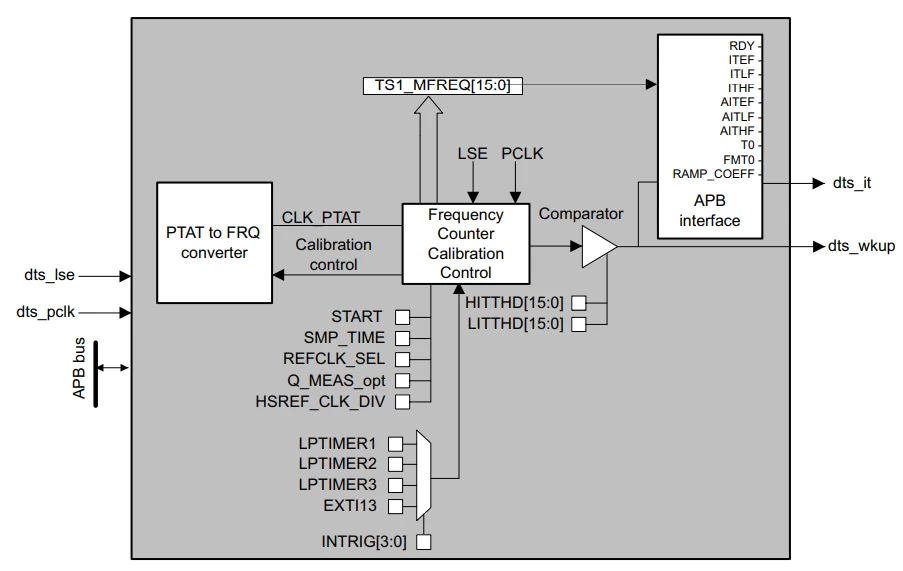 Figure 3. DTS block diagram
Let’s see how to enable, configure, and use the peripheral using STM32CubeMX in the next section.
3. DTS temperature sensor reading example
3.1 DTS configuration and project creation
- Open STM32CubeIDE and STM32CubeMX
-
Start the project based on a board by selecting [ACCESS TO BOARD SELECTOR] and type the board name as shown in the figure
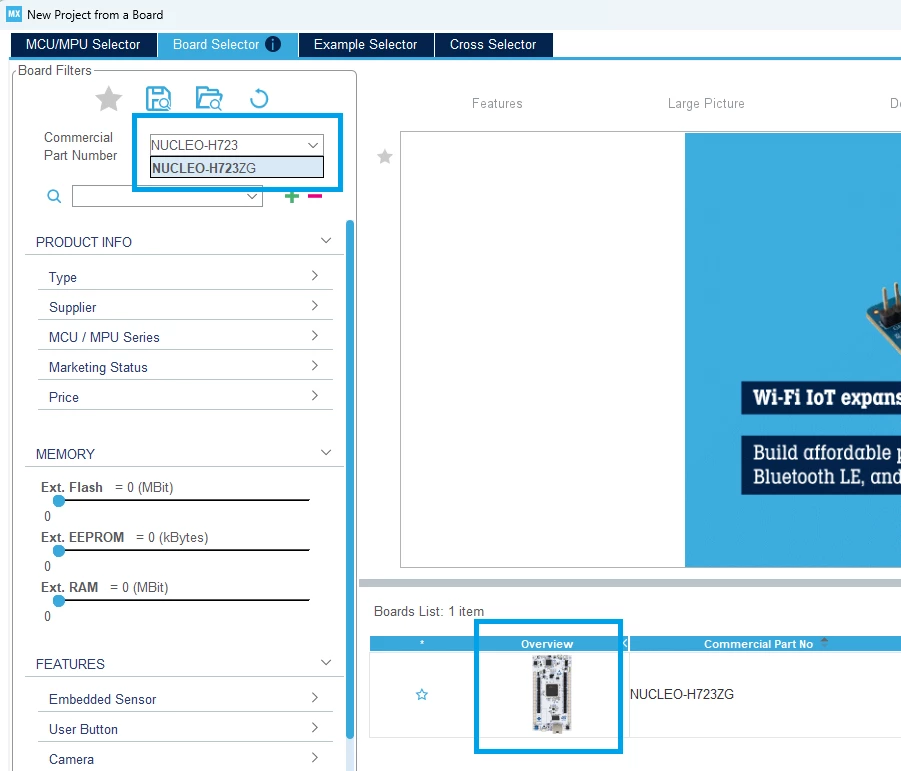 Figure 4. Select the board
 - Disable the BSP code generation as shown in figure 5:
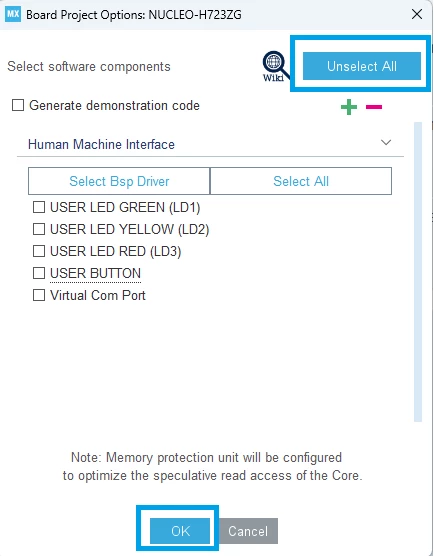 Figure 5 Disable BSP code generation
- Enable the DTS temperature sensor in the [Analog] tab as shown in figure 6
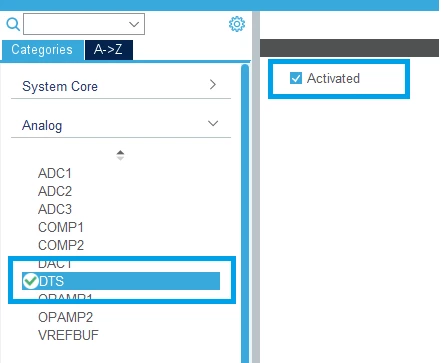 Figure 6. Enable DTS temperature sensor
 - Check what’s the PCLK frequency value feeding DTS. In STM32H723, DTS is attached to APB4 bridge (refer to the reference manual of the product/ Section "Memory organization"). We need to look at APB4 frequency. Figure 7 shows that in this case the APB4 frequency is set at 48 MHz.
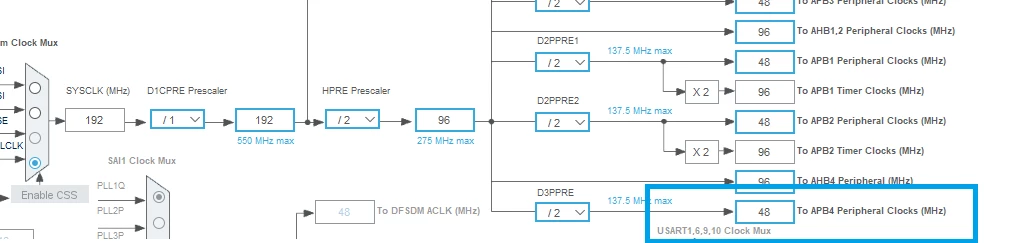 Figure 7. PCLK clock
 - The DTS is configured as described earlier in the article. The figure 8 shows the DTS configuration in STM32CubeMX:
- Start the measurement using software.
- The Reference clock is set to be clocked with the high-speed reference clock, which is PCLK.
- Measurement with calibration is used. So, the quick measurement is disabled.
- As stated in step 5, the APB4 clock = 48 MHz. Set the divider to 48 to let the DTS counter clock run at 1 MHz.
- For the sampling time, we use 15 samples that are used to get the highest precision.
- No thresholds are used in this example.
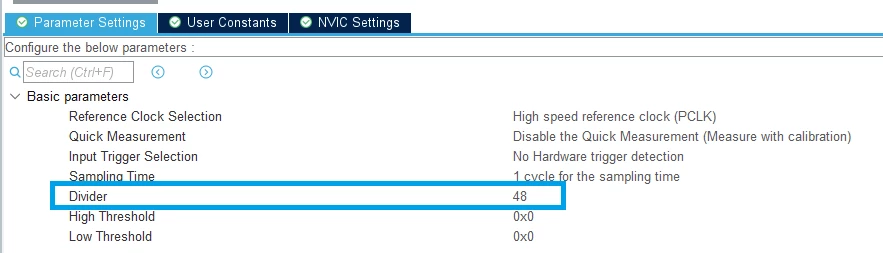 Figure 8. DTS configuration
3.2 Project generation, adding user code and running the example
- As shown in figure 9, go to [Project Manager] tab, give a name to the project, for example STM32H723_DTS, select the toolchain [STM32CubeIDE] and uncheck the box [Generate Under Root]:
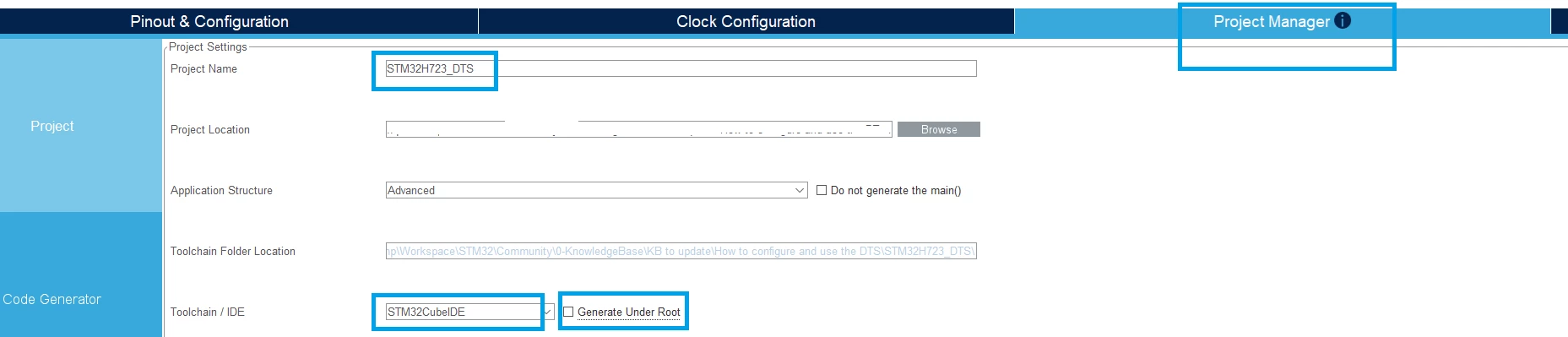 Figure 9. Project configuration
- Generate the project by clicking the [GENERATE CODE] button as shown in figure 10:
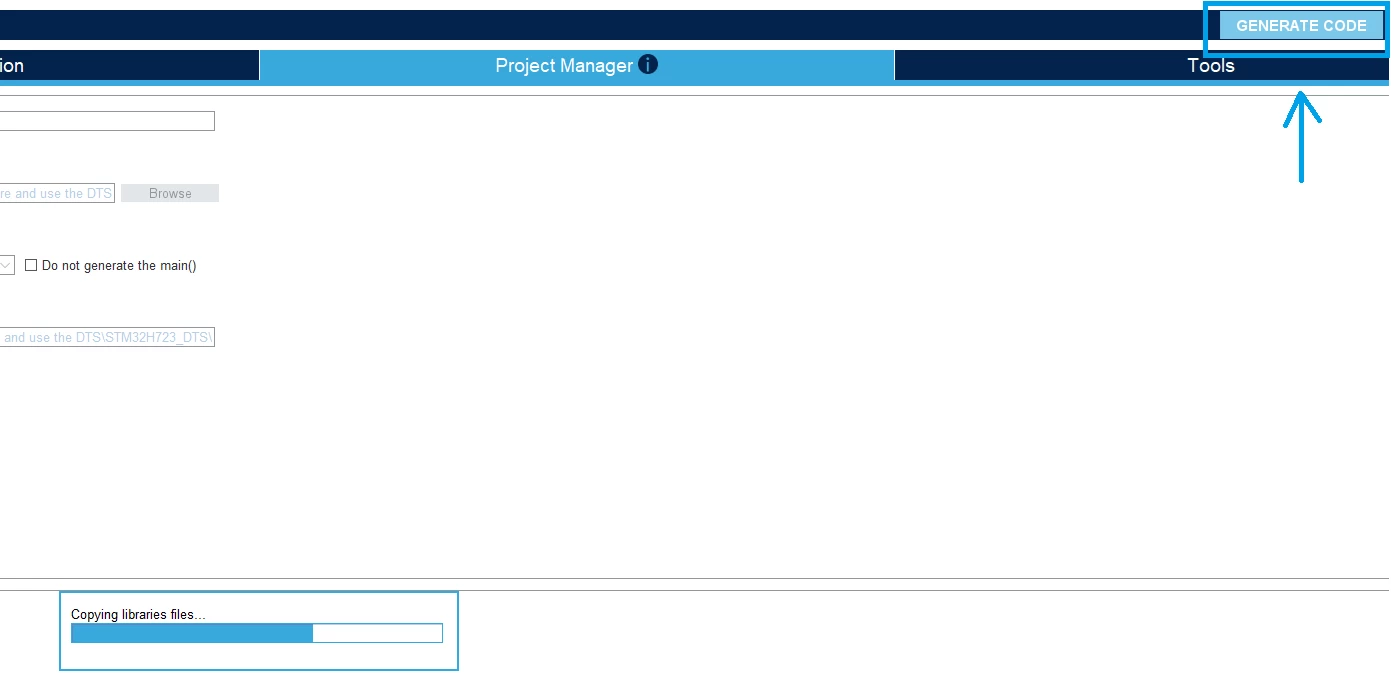 Figure 10. Generate the project
 - Click [Open Project] in the window shown by figure 11:
 Figure 11. Opening the project
 - Launch the project by clicking [Launch] button as shown in figure 12:
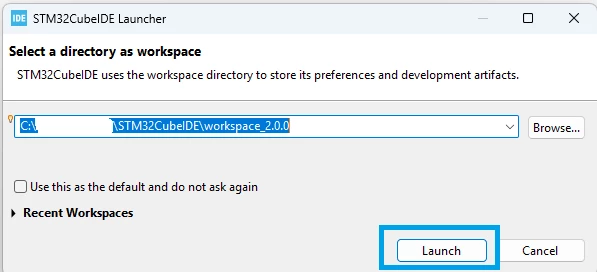 Figure 12. Launch the project in STM32CubeIDE
 - Add the applicative code
Declare the temperature variable that contains the current temperature Tj:
/* USER CODE BEGIN 0 */ int32_t temperature; /* USER CODE END 0 */ In the while loop in the main:
while (1) { if(HAL_DTS_Start(&hdts)!= HAL_OK) { /* DTS start Error */ Error_Handler(); } /* Get temperature in deg C */ if(HAL_DTS_GetTemperature(&hdts, &temperature)!= HAL_OK) { /* DTS GetTemperature Error */ Error_Handler(); } /* Stop DTS peripheral */ if(HAL_DTS_Stop(&hdts)!= HAL_OK) { /* DTS stop Error */ Error_Handler(); } HAL_Delay(2000); /* USER CODE END WHILE */ /* USER CODE BEGIN 3 */ } - Compile the project as shown in figure 13:
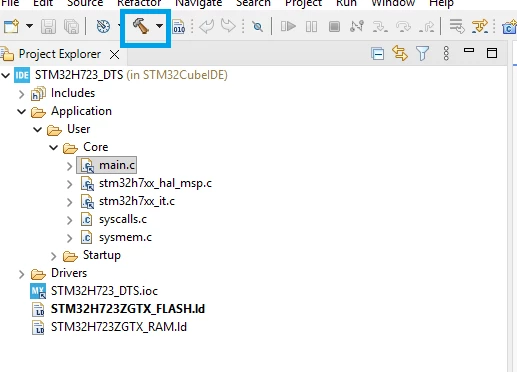 Figure 13 Compile the project
 - Start a debug session as shown in figure 14:
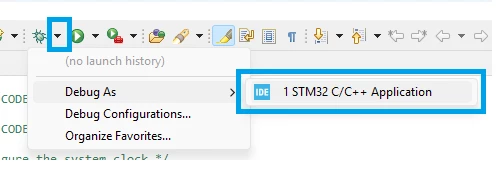 Figure 14 Start a debug session
 - Add the temperature variable to the [Live Expressions] and run the application as shown in figure 15:
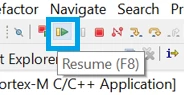 Figure 15 Run the application
The junction temperature is updated each 2 seconds in the Live Expression as shown in figure 16: Figure 16 The current junction temperature (Tj) is shown in °C.
Conclusion
This article provides the basics of the DTS temperature sensor embedded in STM32 MCUs and provided how to configure it using the PCLK clock with the quick measurement option disabled.
Related links
- Reference manual RM0468: STM32H723/733, STM32H725/735 and STM32H730 Value line
advanced Arm®-based 32-bit MCUs reference manual. - Datasheet DS13313: STM32H723VE STM32H723VG STM32H723ZE STM32H723ZG
- STM32CubeIDE - Integrated Development Environment for STM32
- NUCLEO-H723ZG - STM32 Nucleo-144 development board
- Application note: AN5036 Guidelines for thermal management on STM32 applications
