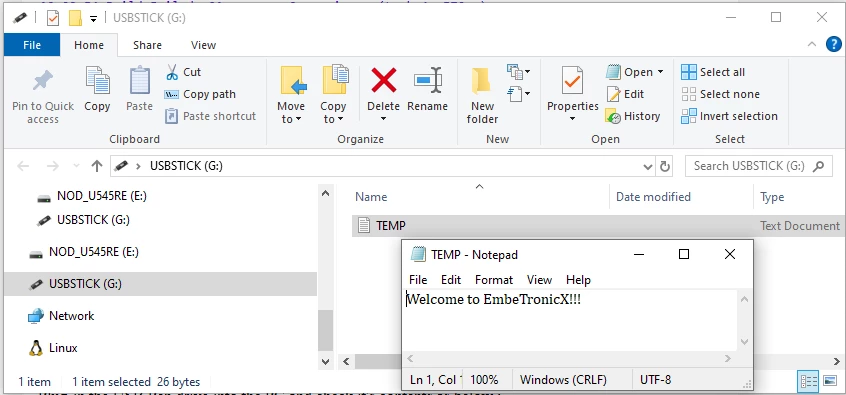
How To access a USB Pen Drive with stm32u545 using ST Usb_Host MSC and FatFs
This article documents step by step the changes to be done in a CUBEMX generated U545 project to access a USB Pen Drive using ST Usb_Host MSC and FatFs
Working Code for the NUCLEO-U545RE-Q board is available at
https://github.com/NereusF1/stm32u545-classic-coremw-usb-host-fatfs
Built using embedded software package STM32U5 v1.8 and STM32CUDEIDE v1.19.0
This project is tested on the NUCLEO-U545RE-Q board.
USB Pen drive must be formatted to FAT32.
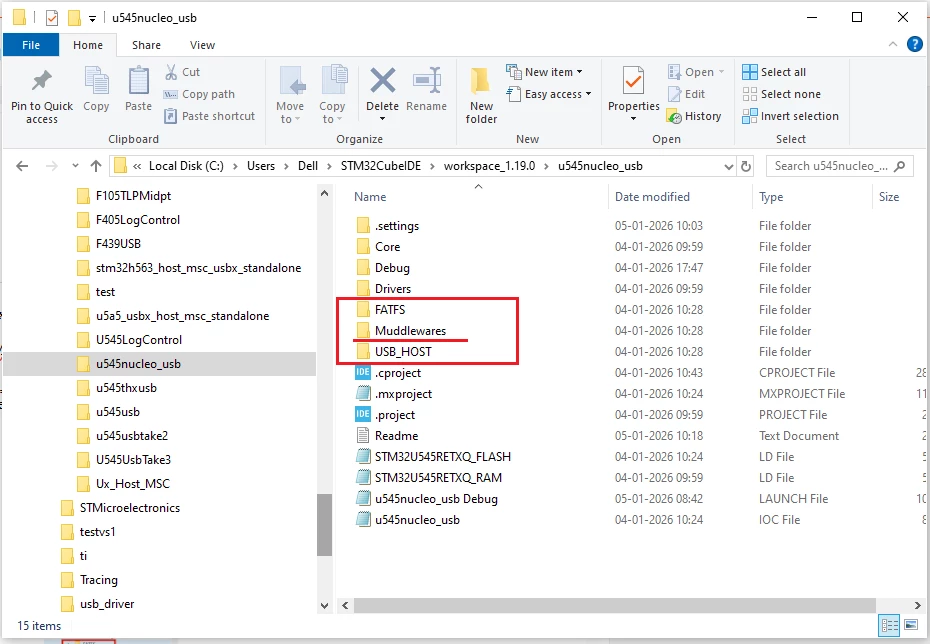
The classic Middleware versions are ST USB Host Lib V3.5.1. and FatFs VR0.12c (ST modified 2023-08-18). The classic Middleware are copied over from an F439 project built using embedded software package STM32F4 v1.28.3
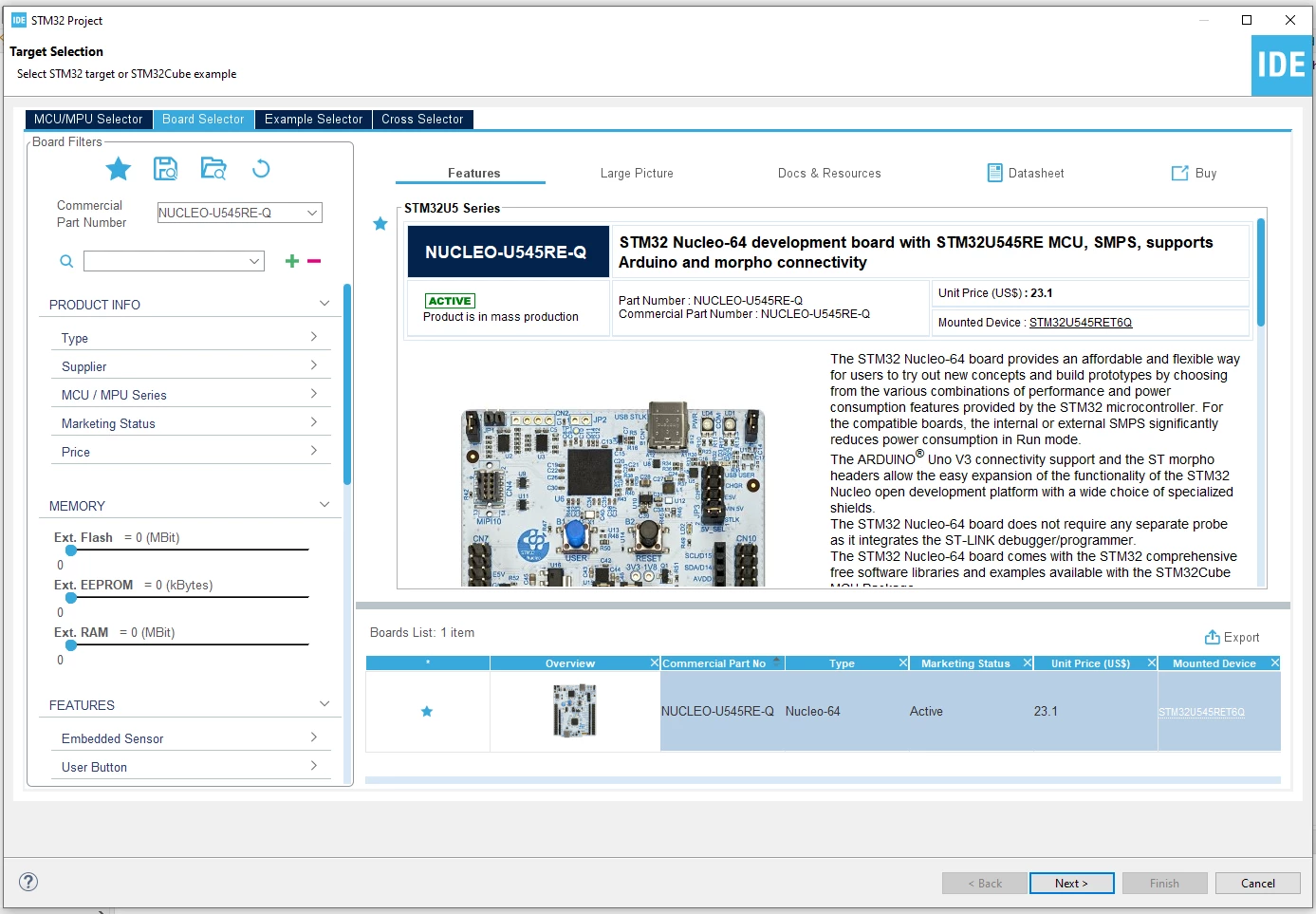
Start a new project in STM32CubeIDE by selecting File → New → STM32 Project. Navigate to the [Board Selector] tab and choose [NUCLEO-U545RE-Q].
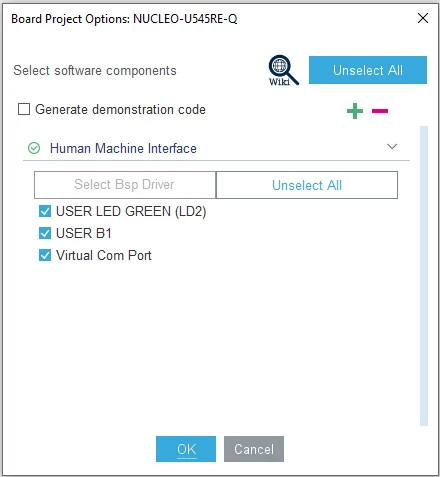
2. Keep the default board options
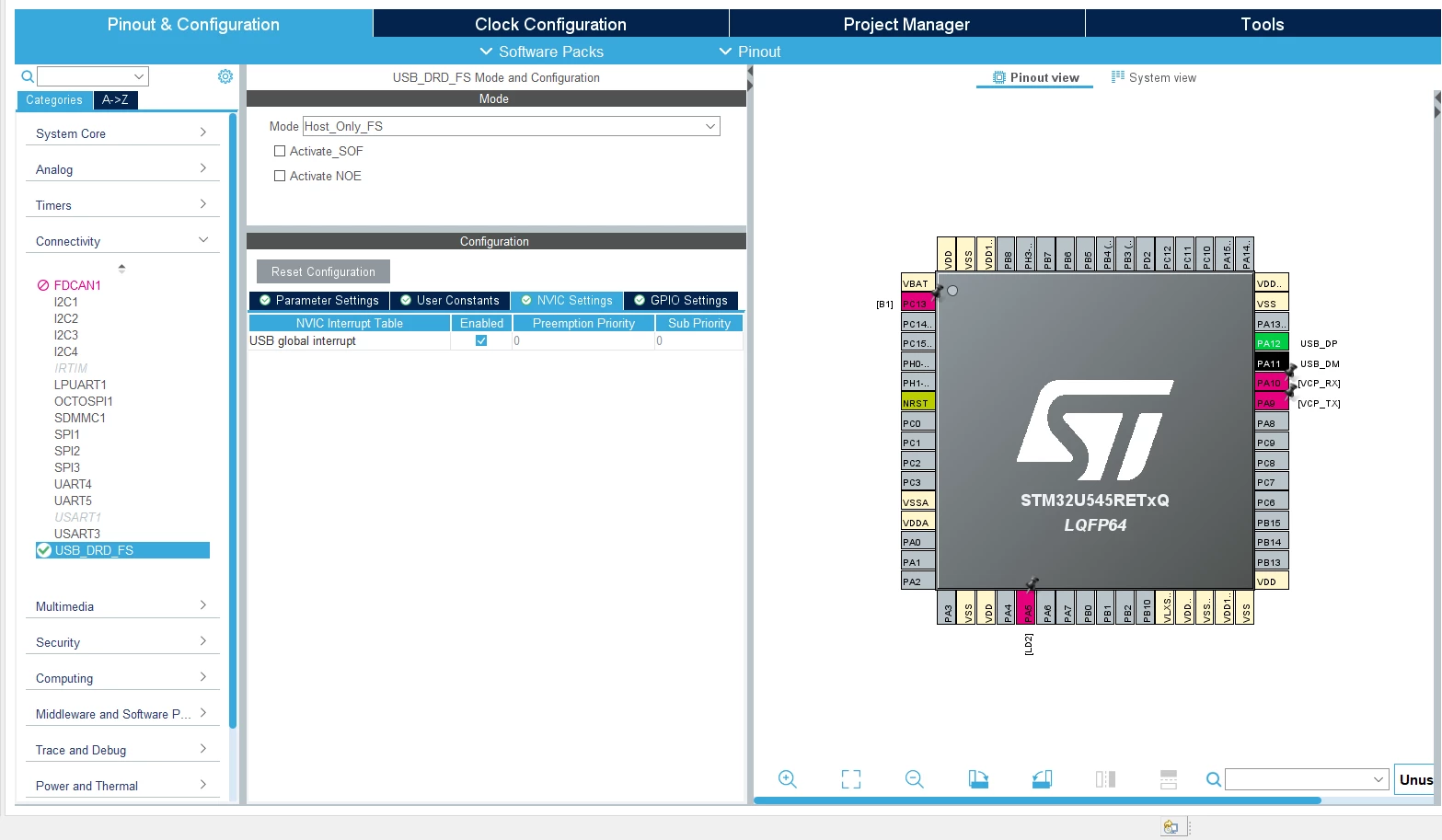
3. After creating the project, navigate to the [Connectivity] section, enable the USB peripheral [USB_DRD_FS] in mode [Host_Only_FS], and activate the USB global interrupt in the NVIC settings.
RM0456 Rev 6 Reference manual STM32U5 series Arm®-based 32-bit MCUs
pg. 3087/3653 The USB peripheral implements an interface between a full-speed USB 2.0 bus and the APB2 bus.
pg. 3094/3653 Note: Due to USB data rate and packet memory interface requirements, the APB2 clock must have a minimum frequency of 12 MHz to avoid data overrun/underrun problems.
pg. 3141/3653 Caution: To guarantee a correct operation for the USB OTG FS peripheral, the AHB frequency must be higher than 14.2 MHz.
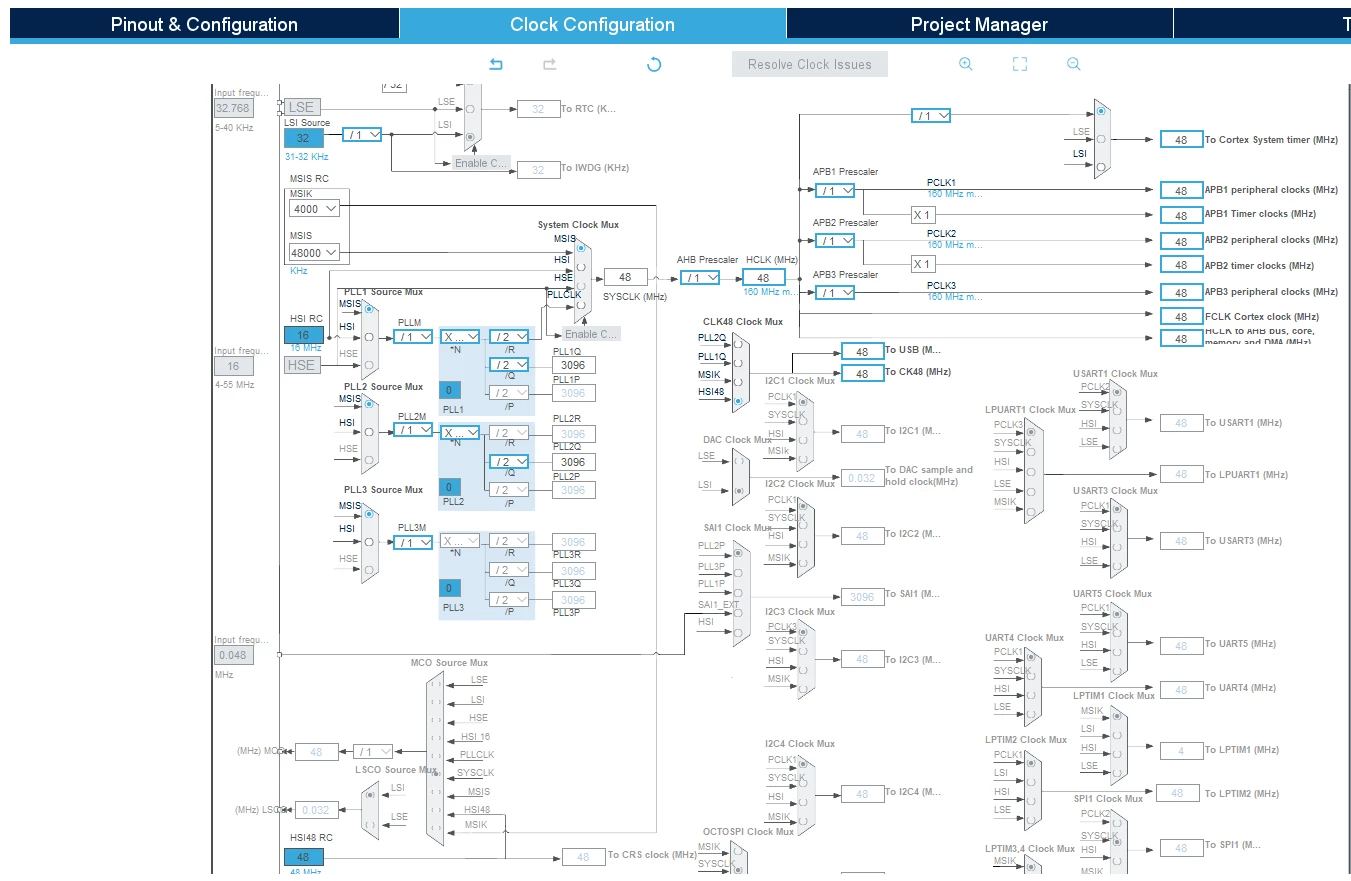
This being a low power device I would have liked to run SYSCLK & APB2 at lower frequency to save power but for good measure, I set SYSCLK, APB2 and USB clocks all to 48MHz.
5. For good measure set the Minimum Heap and Stack Sizes as below.
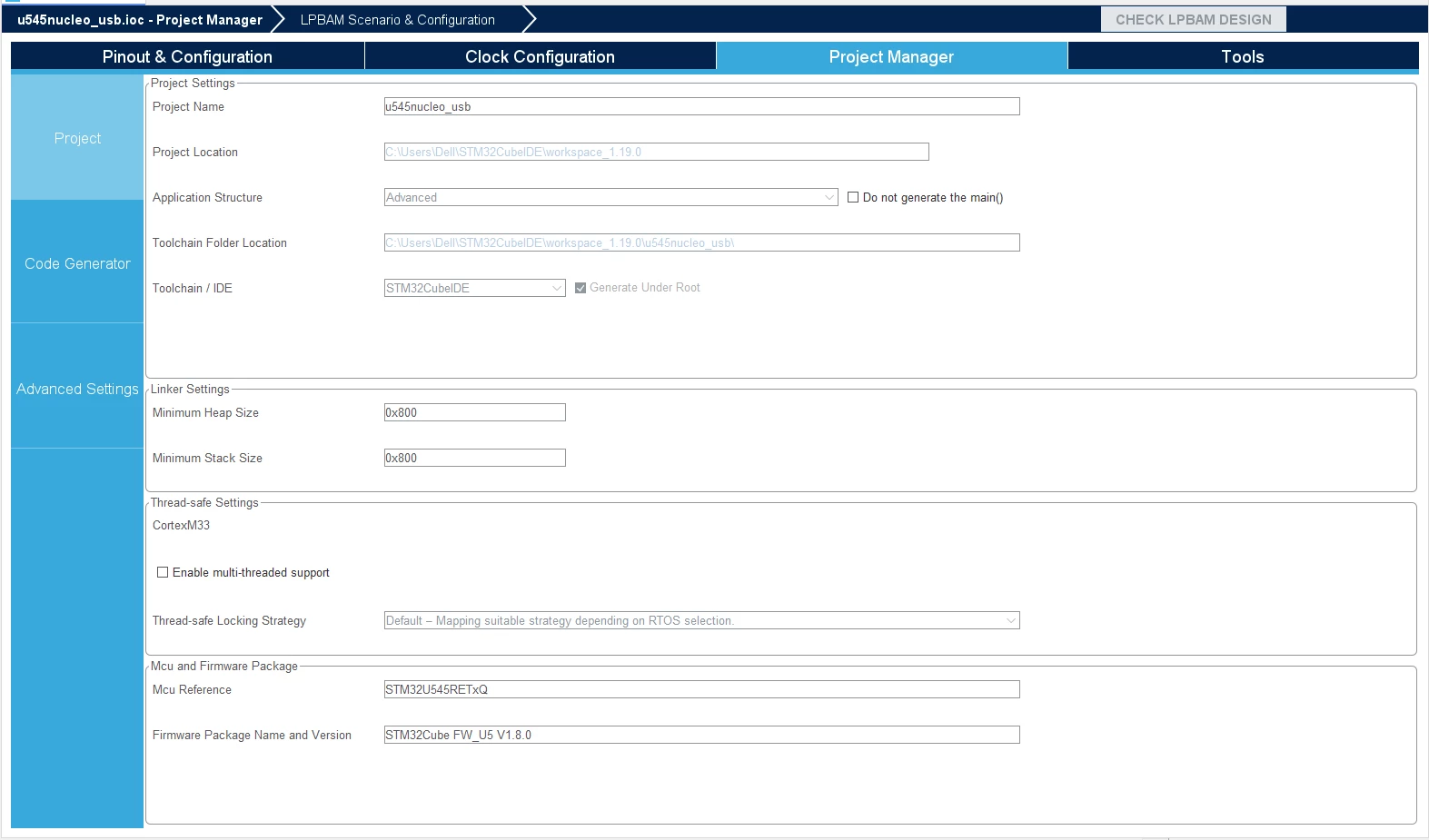
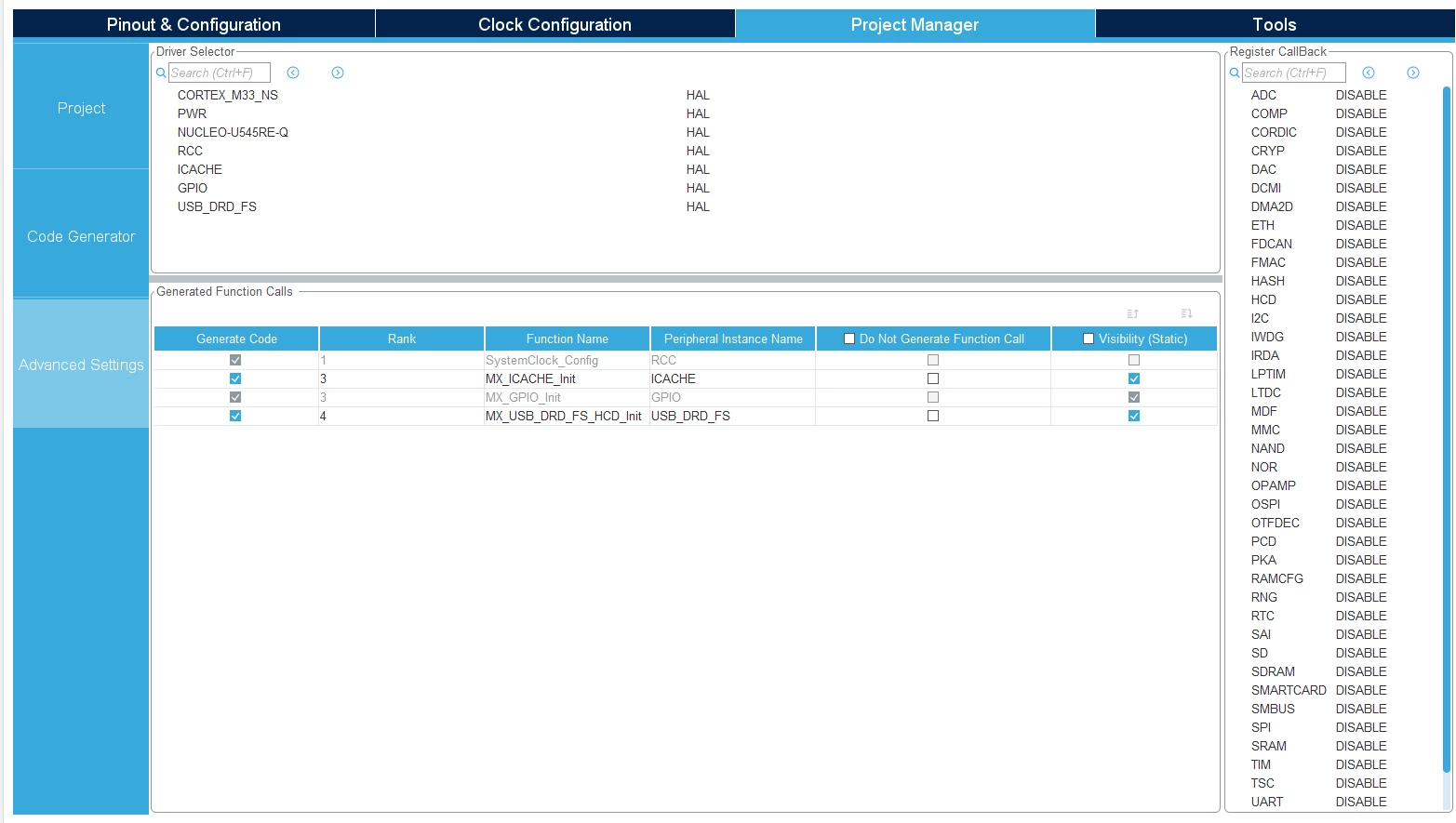
6. No changes should be required in Advanced Settings
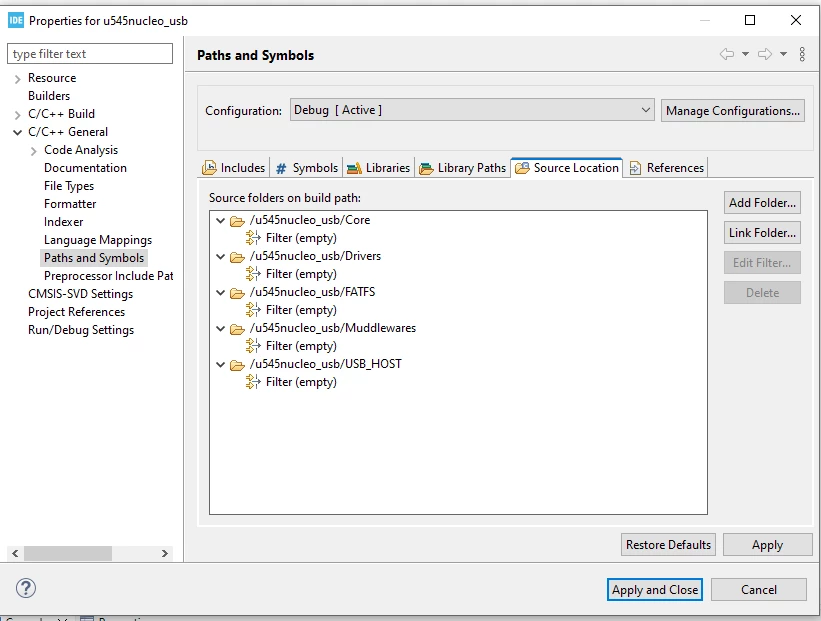
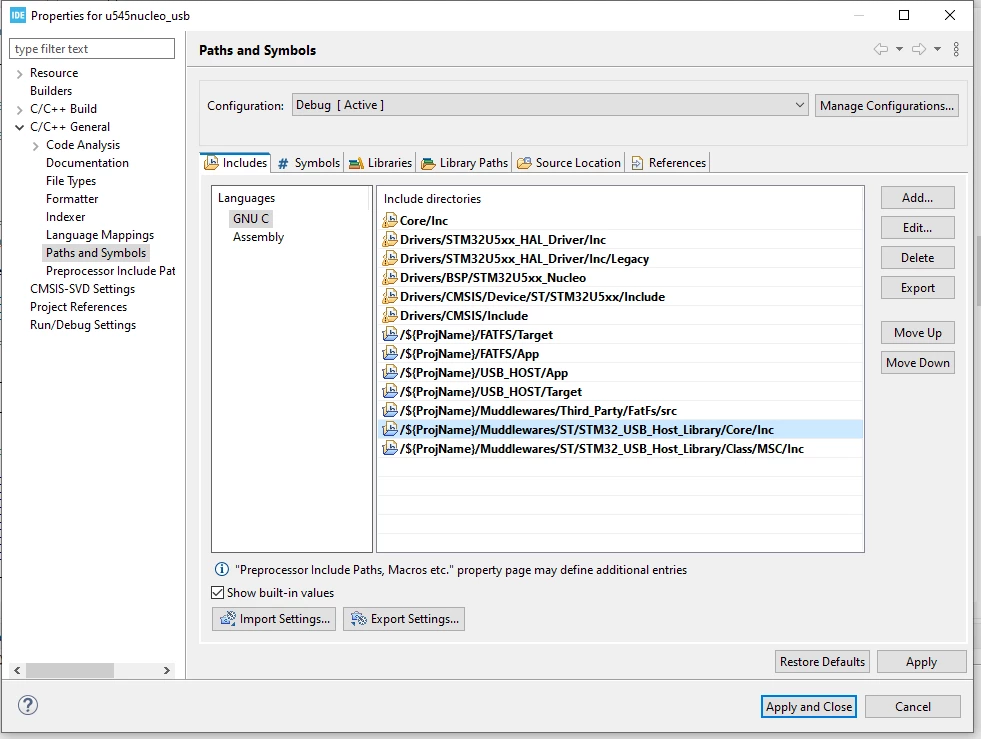
/* USER CODE BEGIN Includes */
#include "fatfs.h"
#include "usb_host.h"
#include <stdio.h>
/* USER CODE END Includes */

/* USER CODE BEGIN PV */
extern ApplicationTypeDef Appli_state;
uint8_t USBWriteOpEnable; // set from the watch window
extern UART_HandleTypeDef huart3;
/* USER CODE END PV */

/* USER CODE BEGIN PFP */
void MX_USB_HOST_Process(void);
void MyUSBUserFnc(void);
static FRESULT ETX_MSC_ProcessUsbDevice(void);
/* USER CODE END PFP */

 /* USER CODE BEGIN 2 */
 MX_FATFS_Init();
 MX_USB_HOST_Init();
 /* USER CODE END 2 */

 /* USER CODE BEGIN 3 */
	 MX_USB_HOST_Process();
	 MyUSBUserFnc();
 }
 /* USER CODE END 3 */